
Upgrading the SSD in a Lenovo Legion Go can feel like a daunting task, but it’s easier than finding a needle in a haystack—especially when that needle is a shiny new SSD waiting to supercharge your gaming experience. Whether you’re tired of loading screens that feel like they’re auditioning for a slow-motion film or you just want to store more games than your friends can count, this guide is here to help.
Overview of Lenovo Legion Go
Lenovo Legion Go stands as a versatile handheld gaming device. Equipped with a robust AMD Ryzen processor, it delivers impressive performance and graphics capabilities. Gamers benefit from a 7-inch LCD display, providing vibrant visuals and an immersive experience.
Operating on Windows 11, the Legion Go offers access to a vast library of games. Connectivity options include Wi-Fi 6E and Bluetooth 5.2, supporting seamless multiplayer experiences. This device also features customizable RGB lighting on controls for a personal touch.
Storage options enhance its appeal. Equipped with fast NVMe SSD options, the device allows for rapid loading times, crucial for modern gaming demands. Gamers can choose SSD sizes to accommodate an extensive collection of games and applications without worrying about space limitations.
Battery life is optimized for extended gaming sessions. With a capacity of 49.2Wh, it ensures hours of gameplay on a single charge. Its lightweight design offers portability, allowing gamers to take their experience on the go.
The Lenovo Legion Go combines cutting-edge technology with gamer-friendly features. Its specifications cater to the needs of gamers seeking both performance and convenience. With the capability to upgrade storage, it meets the evolving demands of game libraries and enhances overall usability.
Reasons to Upgrade Your SSD
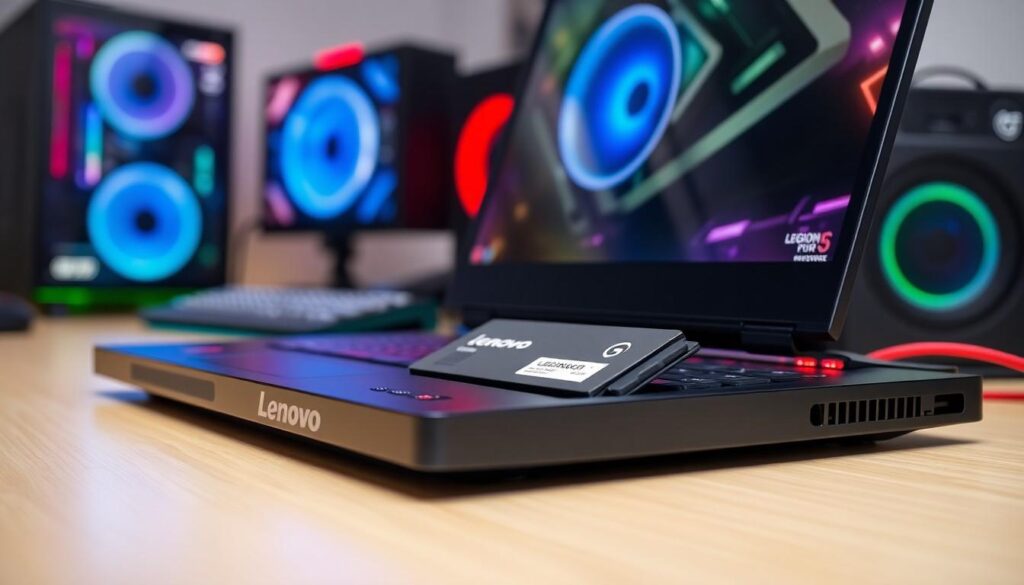
Upgrading the SSD in a Lenovo Legion Go offers significant benefits. Gamers experience enhanced performance and storage opportunities.
Increased Storage Capacity
Increasing the storage capacity allows for more games and applications. A bigger SSD can hold larger game files, downloadable content, and updates without issues. Moving from a 512GB to a 1TB SSD provides ample space for multiple titles. Users often find themselves deleting games to free up space; that becomes unnecessary with a larger SSD. Having extra capacity can also enable seamless dual-boot setups or additional software installations, improving overall functionality.
Improved Performance
An upgraded SSD noticeably boosts performance. Faster read and write speeds lead to reduced loading times for games and applications. In real terms, a high-quality NVMe SSD can improve load times by 50% or more compared to standard SATA SSDs. Gamers appreciate faster data access, resulting in smoother gameplay and quicker response times. System responsiveness improves, enhancing the overall gaming experience, especially in demanding scenarios. Upgrading not only elevates the performance of the device but also enriches user satisfaction.
Preparing for the Upgrade
Preparing for an SSD upgrade in the Lenovo Legion Go involves several important steps. Gathering the right tools and ensuring data safety are essential for a smooth process.
Tools Required
For this upgrade, a few specific tools are needed. Users require a Phillips head screwdriver to access the SSD compartment. It’s also helpful to have an anti-static wrist strap to prevent electrostatic discharge during the installation. A compatible NVMe SSD should be selected based on storage needs and performance. Lastly, a clone or imaging software may enhance data transfer ease if retaining existing data on the old SSD.
Backup Your Data
Backups provide peace of mind during the upgrade process. First, users should connect external storage or use cloud services to save important files. Ensure that game saves and configuration settings are included in the backup. Memory-intensive files, like game installations, can be backed up separately, but reinstalling them later may streamline the process. Verifying the backup’s integrity before proceeding is crucial to prevent data loss. These steps ensure a secure upgrade experience.
Step-by-Step Guide to Upgrading SSD
Upgrading the SSD in a Lenovo Legion Go involves several straightforward steps. Following this guide ensures a smooth transition to a larger, faster storage option.
Opening the Lenovo Legion Go
First, locate the screws securing the back panel of the device. Use the Phillips head screwdriver to remove each screw carefully. Next, gently pry open the back panel using a plastic opening tool, avoiding damage to the casing. Ensure that the anti-static wrist strap is securely worn to protect internal components from static electricity. After removing the back panel, take a moment to inspect the internal structure, noting where the SSD is located.
Removing the Old SSD
Start by locating the existing SSD, typically secured with a mounting screw. Remove this screw with the screwdriver and set it aside for later use. Carefully lift the SSD from its slot at an angle to ensure no damage occurs to the connectors. Once free, place the old SSD in a safe location to prevent any accidental damage. Verify that all parts remain intact before proceeding with the next step.
Installing the New SSD
Begin the installation by aligning the new NVMe SSD with the slot in the device. Insert the SSD at a slight angle, ensuring it fits snugly. Once in place, press it down gently and secure it with the previously removed mounting screw. Confirm that the SSD sits firmly to avoid connection issues. After the SSD installation, it’s crucial to ensure it is recognized by the system upon reassembly.
Closing the Device
Reattach the back panel by aligning it with the edges of the device. Ensure that all edges fit securely before pressing down gently to lock it in place. Replace each screw, tightening them to provide stability while avoiding over-tightening. After securing the panel, perform a final check to confirm all components are properly aligned and secure. Power on the device and check for proper recognition of the new SSD, ensuring readiness for use.
Post-Upgrade Tips
Post-upgrade, ensuring the new SSD is ready for use significantly enhances performance. Users must format the SSD to make it recognizable by the system.
Formatting the New SSD
Formatting the new SSD involves accessing the Disk Management tool in Windows 11. Right-click on the Start menu and select ‘Disk Management.’ Unallocated space appears for the new SSD. Users must create a new volume by right-clicking this space and choosing ‘New Simple Volume.’ Follow the prompts to assign a drive letter and select the NTFS file system for optimal performance. Completing this step ensures the SSD is properly formatted and ready for data storage, providing an efficient setup for gaming.
Restoring Your Data
Restoring data brings back games and applications after the upgrade. Using previously backed-up data, users can easily transfer files back to the new SSD. External storage or cloud services serve as reliable sources for restoration. Simply connect the external drive, copy saved files and configurations, and paste them into the appropriate folders on the new SSD. Verifying that everything works properly boosts confidence in the upgrade, allowing improved gaming performance.
Conclusion
Upgrading the SSD in a Lenovo Legion Go is a straightforward process that can significantly enhance gaming performance. By investing in a larger and faster NVMe SSD, users can enjoy quicker loading times and expand their game library without the hassle of managing storage space.
The combination of robust hardware and improved storage capabilities makes the Legion Go an even more formidable gaming device. With careful preparation and execution, gamers can transform their handheld experience and fully leverage the device’s potential. This upgrade not only boosts performance but also elevates overall user satisfaction, making it a smart choice for any avid gamer.